Zia for Emails — Overview and Core Features
Today, most business communication and operations are carried out through emails. Email is a fundamental tool for communication with customers, prospects, partners, and vendors. In addition, emails serve as an official repository of important information such as meeting schedules, business agendas, addresses, invoices, and social media details. Sales teams often spend significant time manually entering this information into CRM systems.
Within Zoho CRM, Zia helps you automatically capture important data such as customer information or meeting details directly from emails. It can also provide insights into the intent of an email (request, query, complaint, etc.) without the need to read the entire email conversation.
Availability
Organizations using Professional edition and above can access email intelligence features.
Data Enrichment from Email Signatures
In professional emails, signatures represent the sender’s corporate identity. They typically include details such as the person’s role in the company, social media profiles, and contact information. They are also used to build brand recognition, drive website traffic, or promote events.
If such valuable information exists within signatures, why not allow Zia to automatically capture it into your CRM account? Zia’s email signature data enrichment feature automatically populates Leads, Contacts, and Accounts records.
Information such as email address, website, phone number, company name, social media handles, designation, and address can be added to CRM records. This reduces the time spent on manual data entry and improves data accuracy.
Within CRM, frequently used fields such as phone, designation, and email are defined as “enrichment fields.” Since these fields may appear under different names across CRM structures, you can map them to the appropriate CRM fields to prevent data confusion.
Steps to enrich data from email signatures
- Select a record from the Leads, Contacts, or Accounts module.
- Open the email within the record.
- Click Enrich Data.
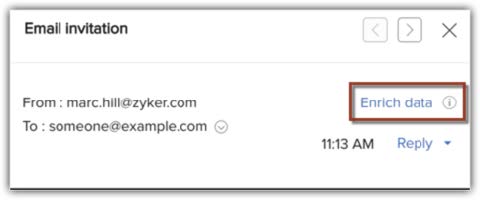
If no new information is available, Zia will notify you.
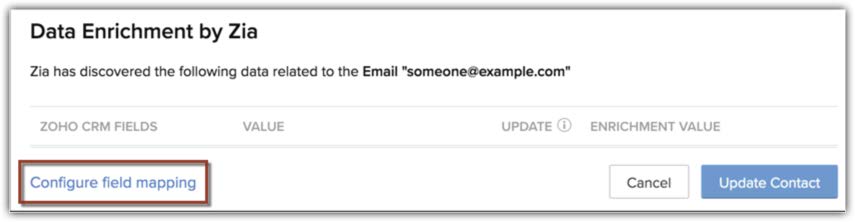
On the Data Enrichment by Zia page, click Configure field mapping.
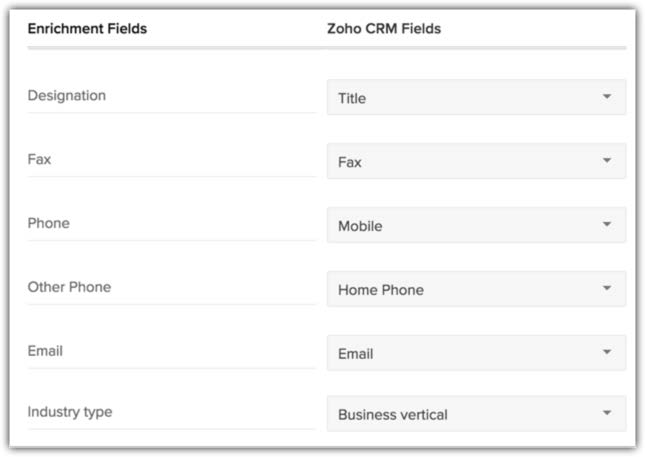
Select Zoho CRM fields and click Save.
Note
- If the “Data Enrichment” plugin is already installed in your CRM account, some global or company-level information will be automatically populated from the internet. If necessary, you can overwrite these fields using information obtained from the email signature by selecting the relevant checkboxes under the Update tab.
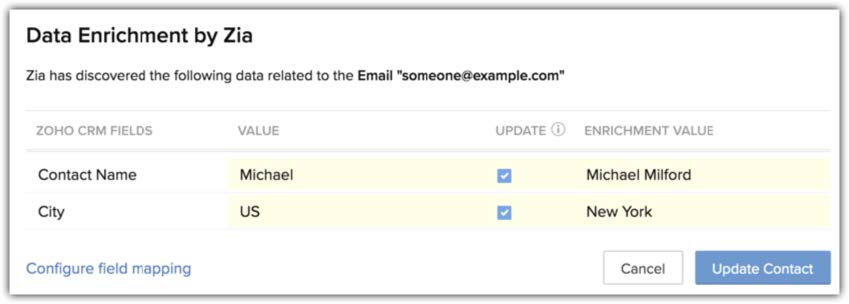
- You can use both the plugin and the email signature together to enrich CRM data. The plugin retrieves general company information from the internet, while the email signature enriches personal contact information.
Summarize Emails
Businesses rely heavily on emails for daily communication with customers and internal teams. However, reviewing entire email threads to understand the context and respond appropriately can be time-consuming in a busy work environment. That’s why Zia is designed to summarize emails.
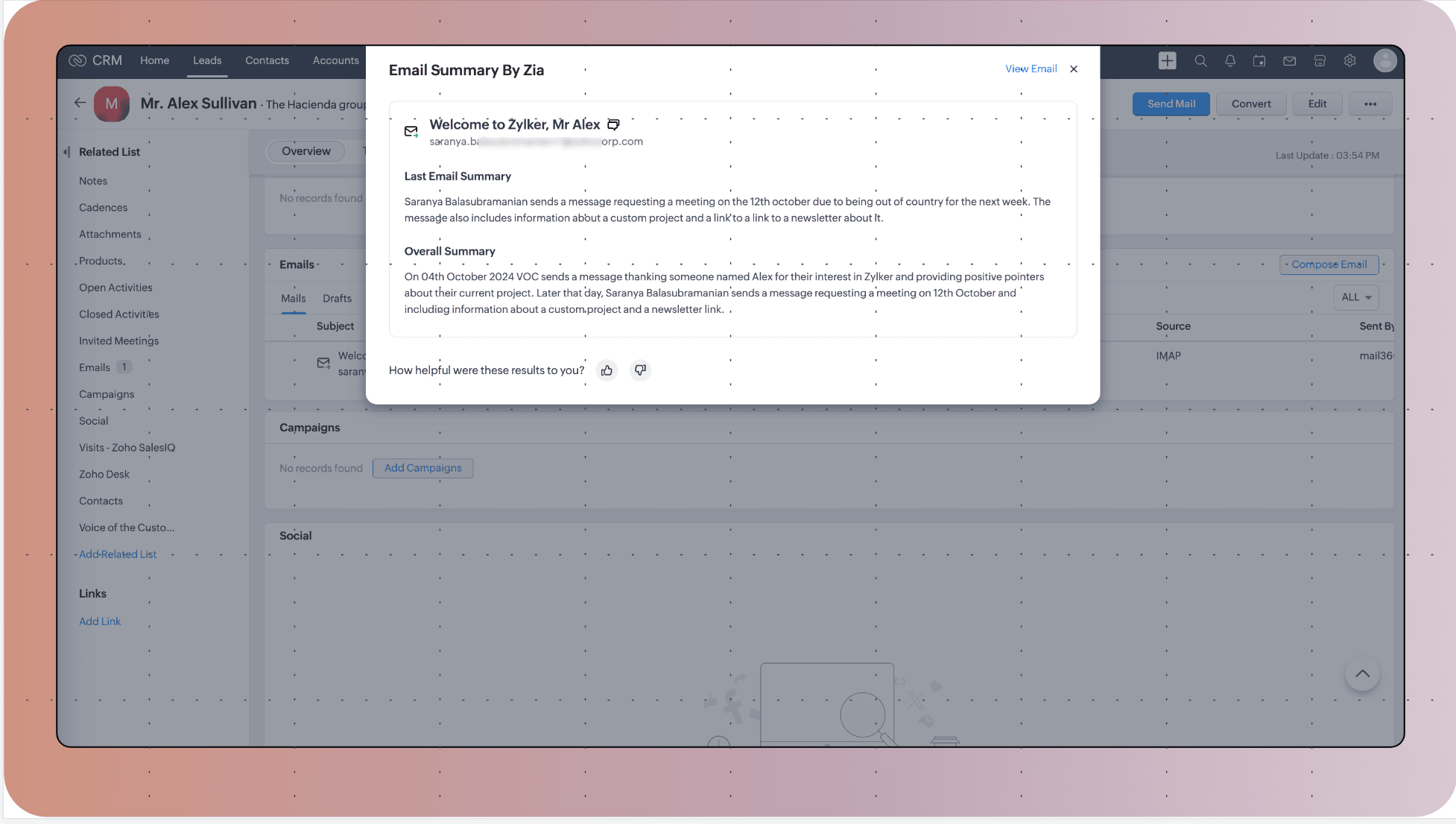
Zia can summarize every email within a record — including individual emails and entire email threads. These summaries help you quickly understand the importance of the email and prioritize your response without reading the entire conversation.
Notes
- Summaries can be accessed from the email related list view.
- Both the latest email and the entire thread can be summarized.
- Zia extracts the essence of the email; it does not alter the tone or sentiment.
- Like/dislike feedback can be used to improve summary accuracy.
- The summarization feature currently supports English, Spanish, Japanese, and German emails.
Activity Extraction from Emails
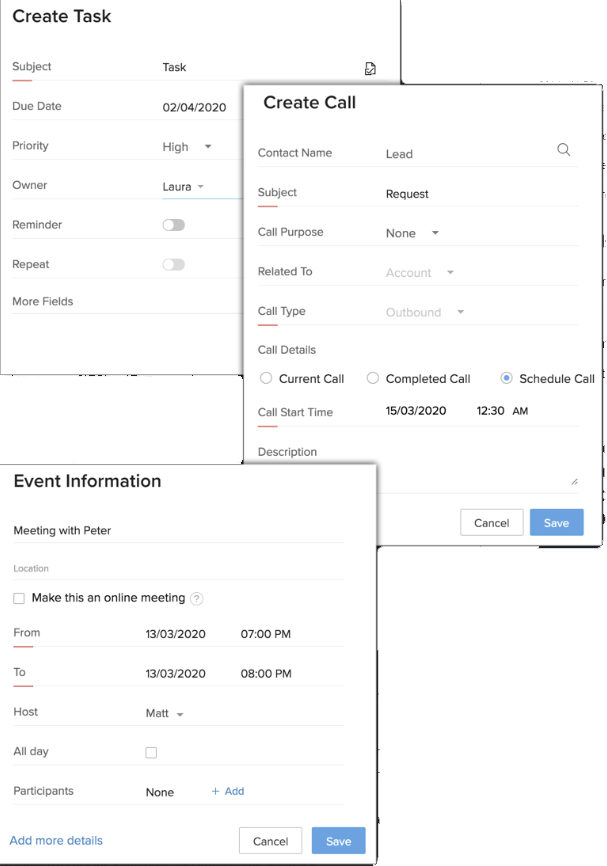
Emails often contain much more than simple responses or business conversations. Organizations may send webinar invitations, share meeting links, provide agendas or venue details, schedule calls, or assign tasks to team members via email. This information can be captured as activities in CRM for proper tracking and record keeping. However, manually adding these details from emails can be time-consuming and may introduce errors. Zia’s activity extraction from emails helps you automatically capture meetings, tasks, and calls directly from email content.
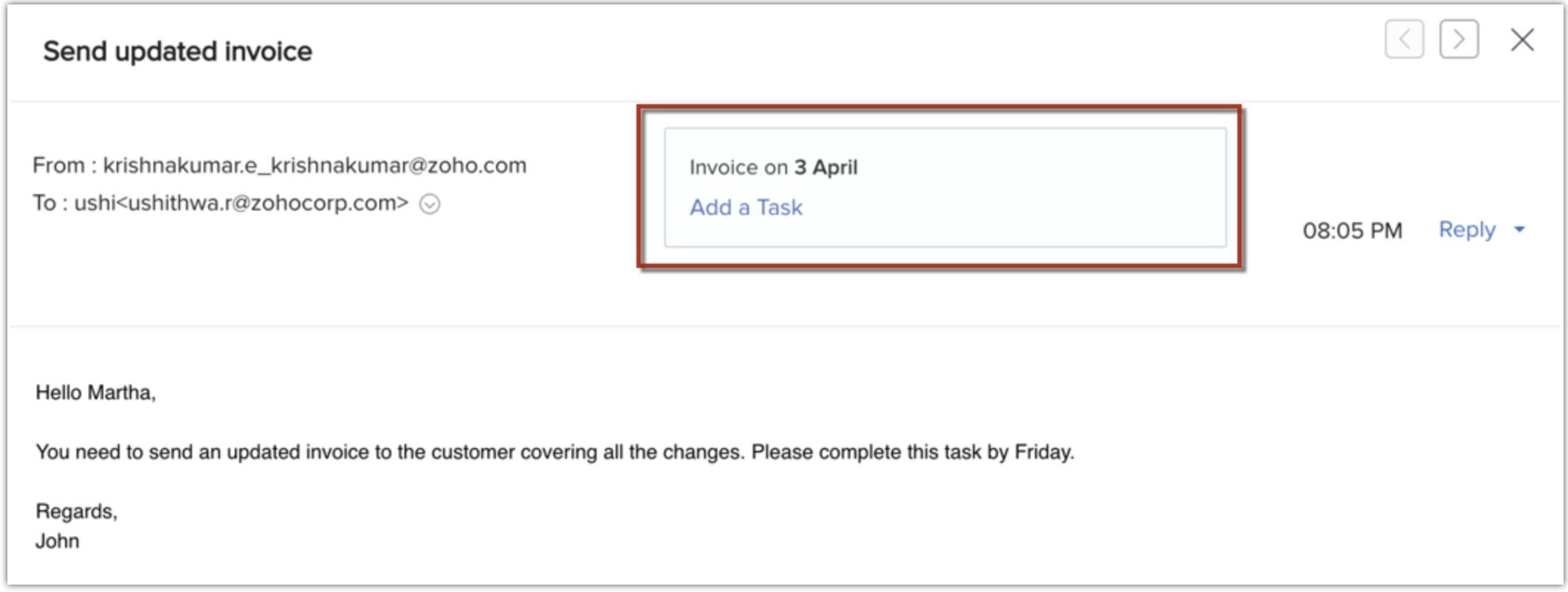
Zia can identify activities mentioned in emails and suggest that the agent add them to CRM directly from the email. Users can edit the suggestion, add more details, or save the activity as is. Zia’s suggestions can be viewed in the emails listed within a record’s related list as well as in SalesSignal.
Points to Consider
- If multiple meetings are mentioned in an email, Zia captures the most distinct one. For example, if the email mentions a call at 9:00 am and a task at 4:00 pm, Zia selects the 9:00 am call as it appears first.
- Activities are automatically adjusted based on the organization’s business hours. For instance, if the email mentions 10:00 am PST, the time will be converted to the organization’s timezone.
- If business hours are not configured in the account, the default time of 9:00 am will be applied to all activities.
- If time or date ranges are mentioned (e.g., 3:00–3:30 pm or March 20–22), Zia selects the first instance. It is recommended to review the populated date and time before saving.
- Zia captures only future scheduled meetings, tasks, and calls. Activities planned for the same day will not be captured.
Steps to capture activities from an email
- Go to the Leads / Contacts / Deals module or an equivalent custom module and select a record.
- Open an email in the related list and click Capture Meeting / Schedule Call / Schedule Task.
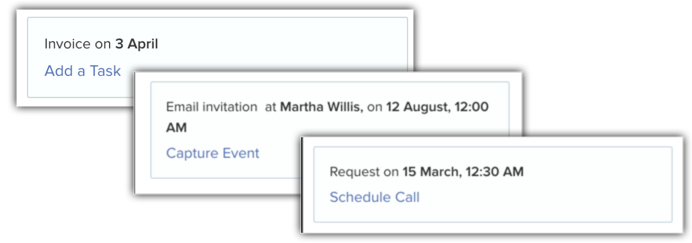
- In the Activity Information popup, review the meeting/task/call details and edit if necessary.
What to Expect in the Near Future
We continuously enhance Zia’s capabilities to deliver the highest possible value to our customers. Some of the improvements on our roadmap include:
- Capturing multiple activities from a single email and marking them within the email body.
- Displaying extracted activities in a centralized area outside of emails so they are not missed.
- Creating a feedback loop based on user edits to improve model accuracy.
- Training Zia with more industry-specific keywords to enhance precision.
Translate Emails
Businesses operating across multiple geographies often communicate with customers and partners in different languages. In such cases, local languages may become the primary communication medium, making it difficult for central teams to understand customer needs. To prevent this, Zia provides a built-in capability to translate emails directly within the interface.
This feature allows translation of the subject line, compose screen, and reading pane into a desired language without importing translation files or using an AI key.
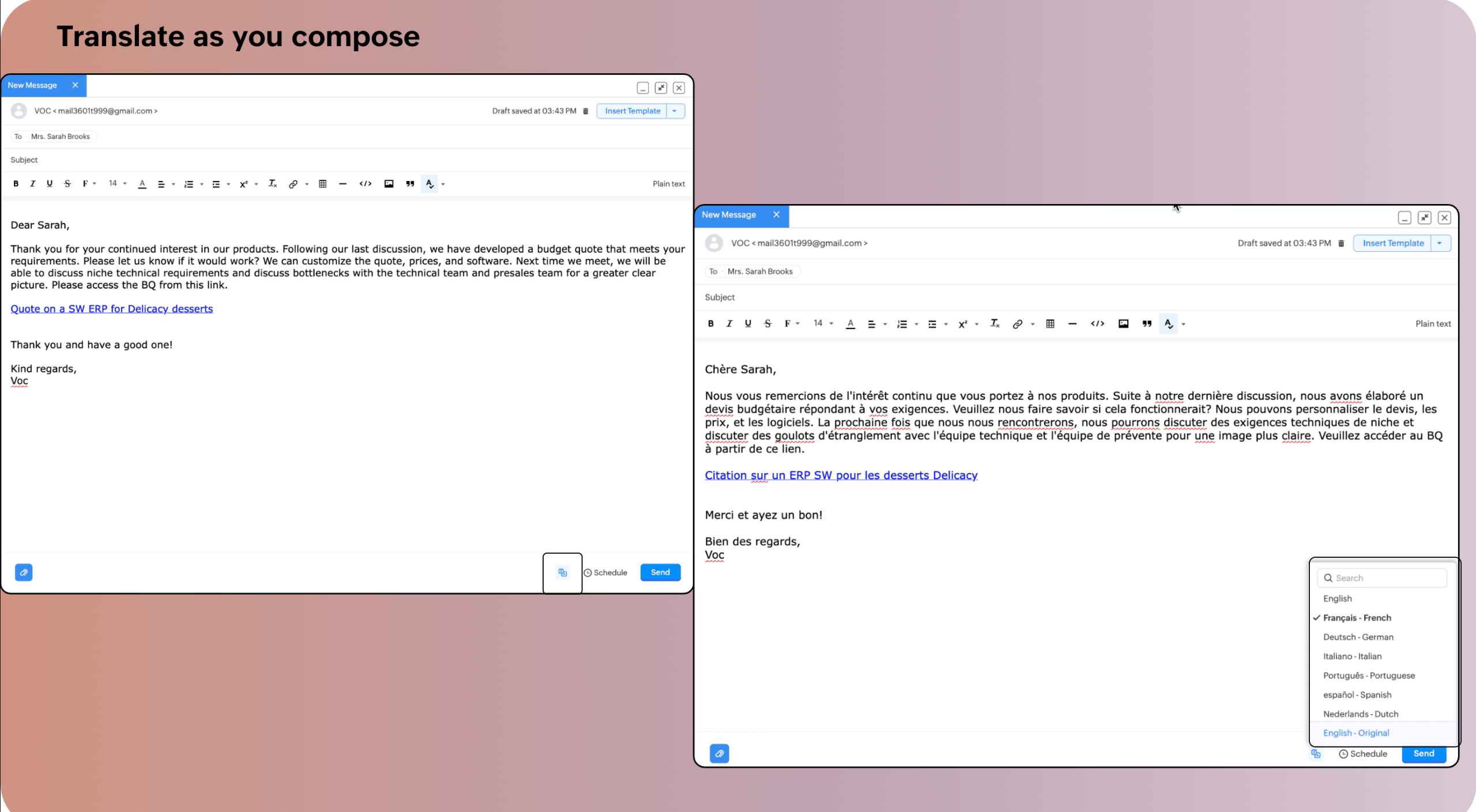
For incoming emails in another language, when you click translate, Zia automatically translates them into your default language. You can change this preference using the language selector displayed after translation.
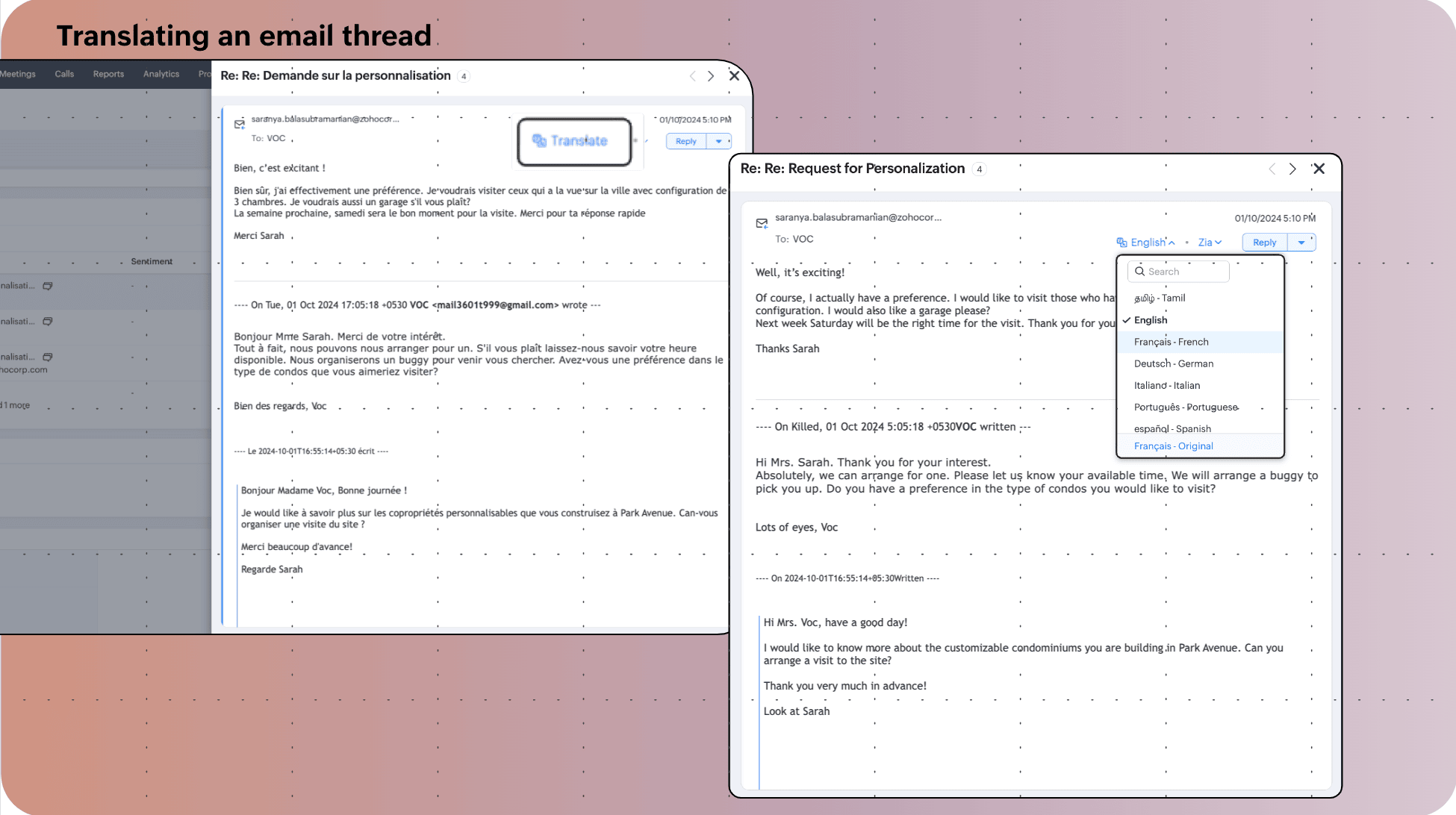
Notes:
- The translate option is available to all users in the email window.
- This feature translates text only; text inside images cannot be translated.
- Zia supports translation in up to 74 languages.
Email Intent Detection
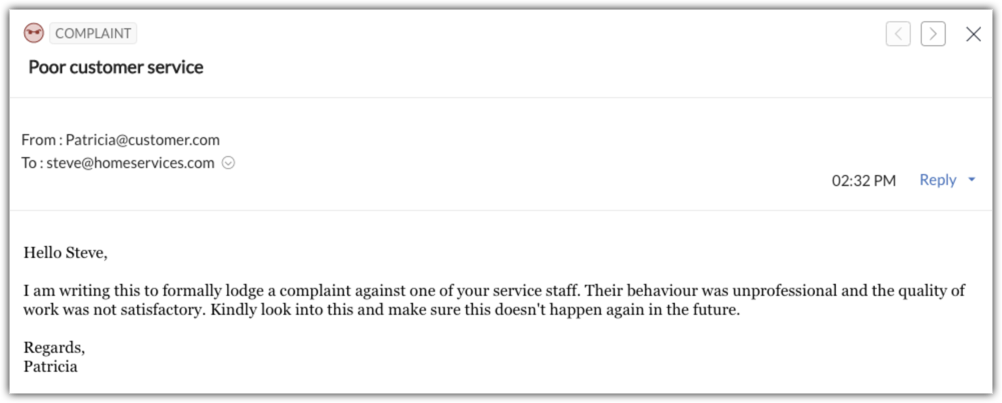
Zia monitors email conversations and highlights the intent of incoming emails. By analyzing email content, it identifies the following intent types:
- Request
- Query
- Complaint
- Others
Help Zia with Feedback
Zia actively monitors email conversations to provide insights into sentiment, intent, emotions, data enrichment, and activity extraction. While Zia aims for high accuracy, occasional errors may occur. The “Help Zia” option allows users to provide feedback and guide Zia for continuous improvement.
To provide feedback to Zia:
- Go to the Contacts module and open Emails in the Related List.
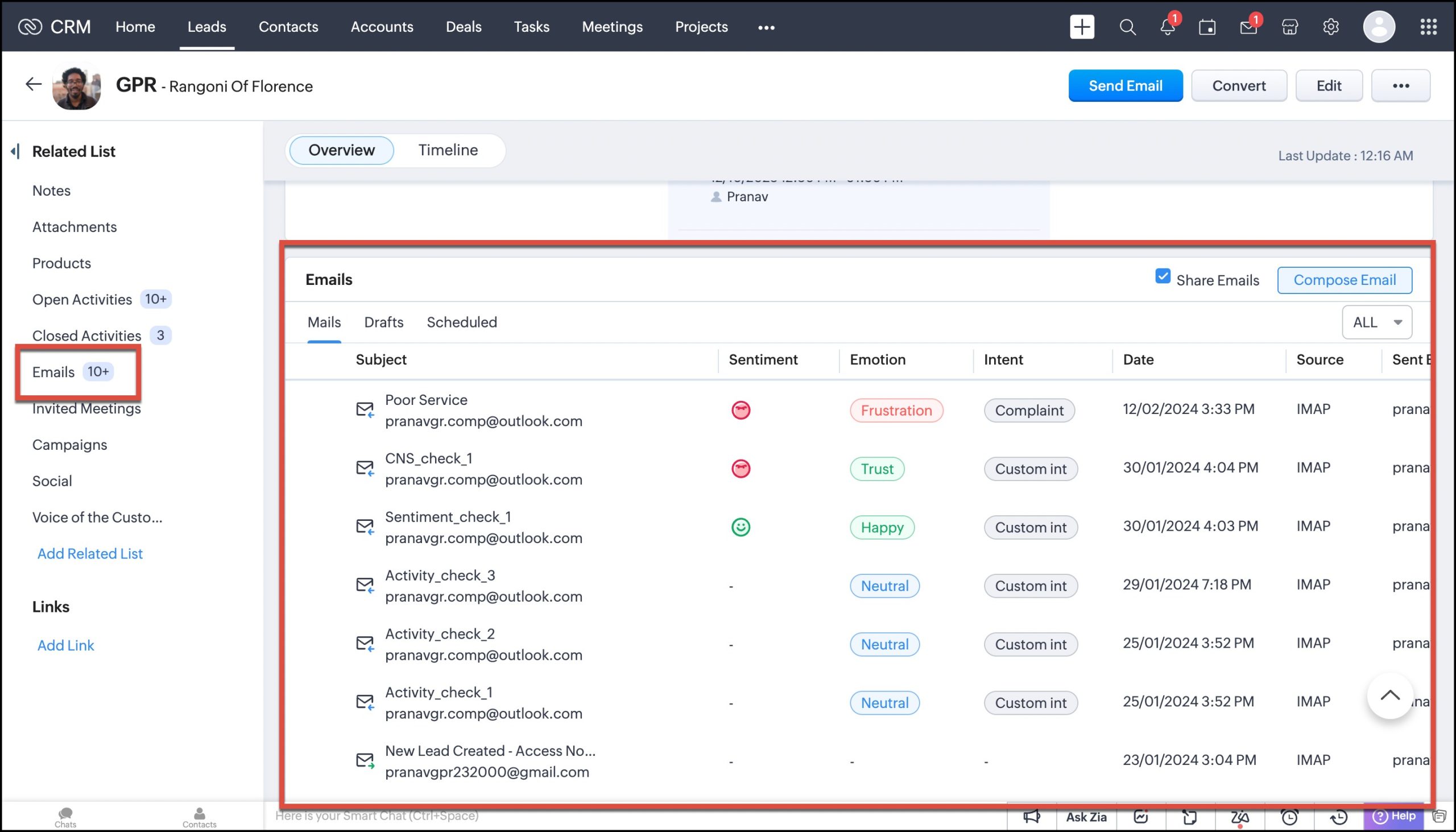
- Open the email for which you want to provide feedback.
- Click Help Zia.
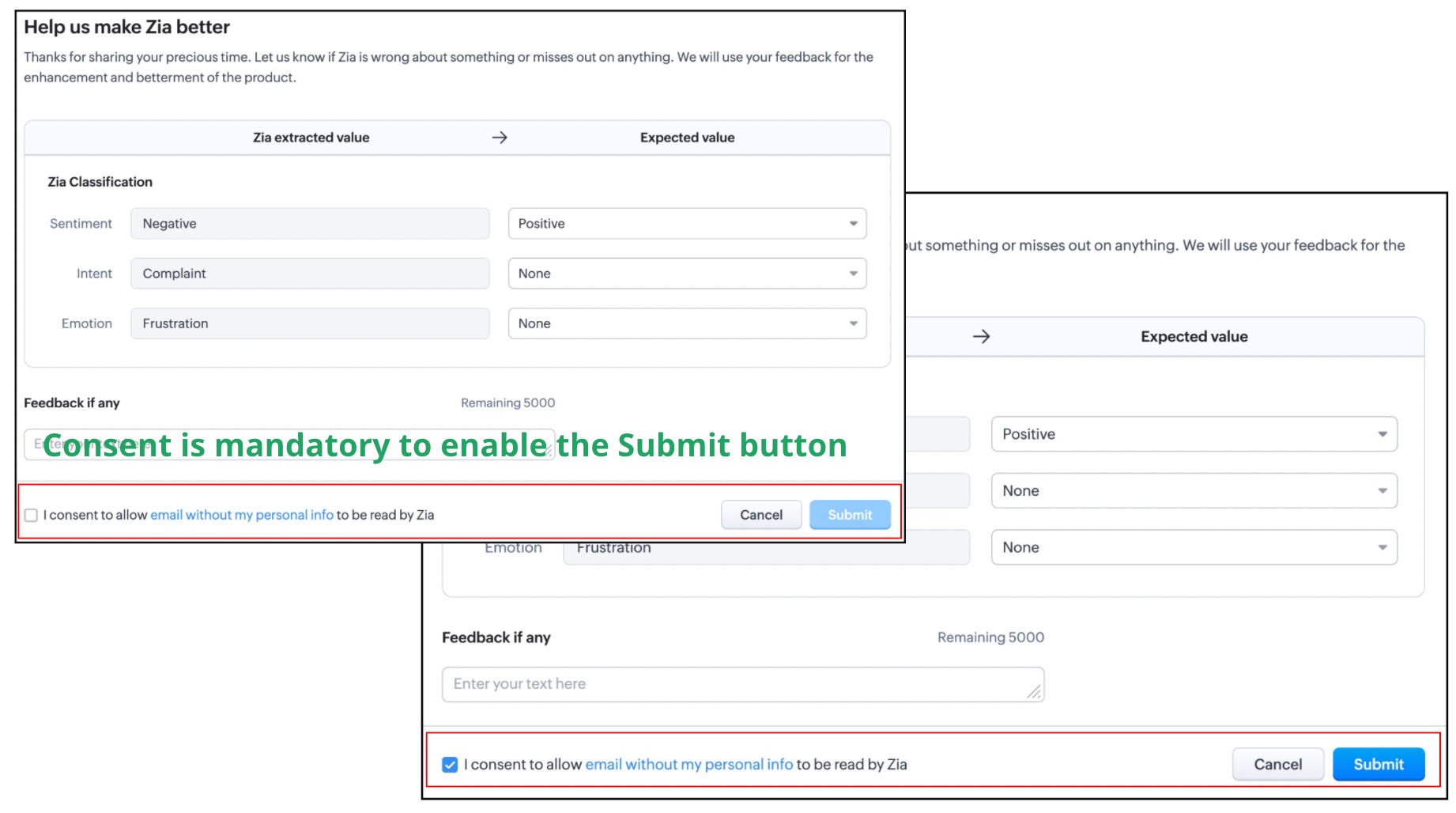
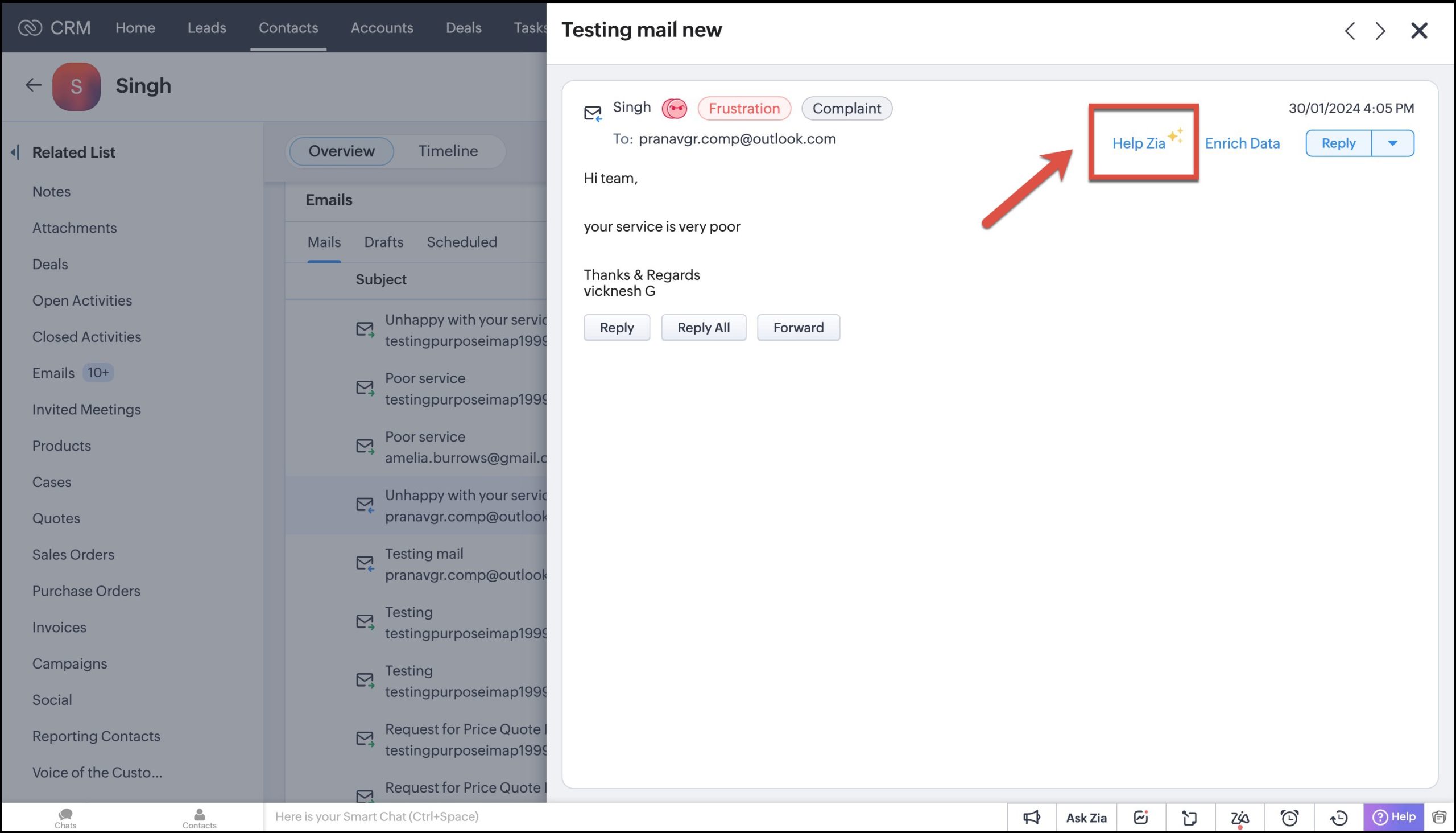 The “Help us make Zia better” popup will appear.
 - You can retain or change the sentiment, intent, and extracted values identified by Zia using the dropdown options.
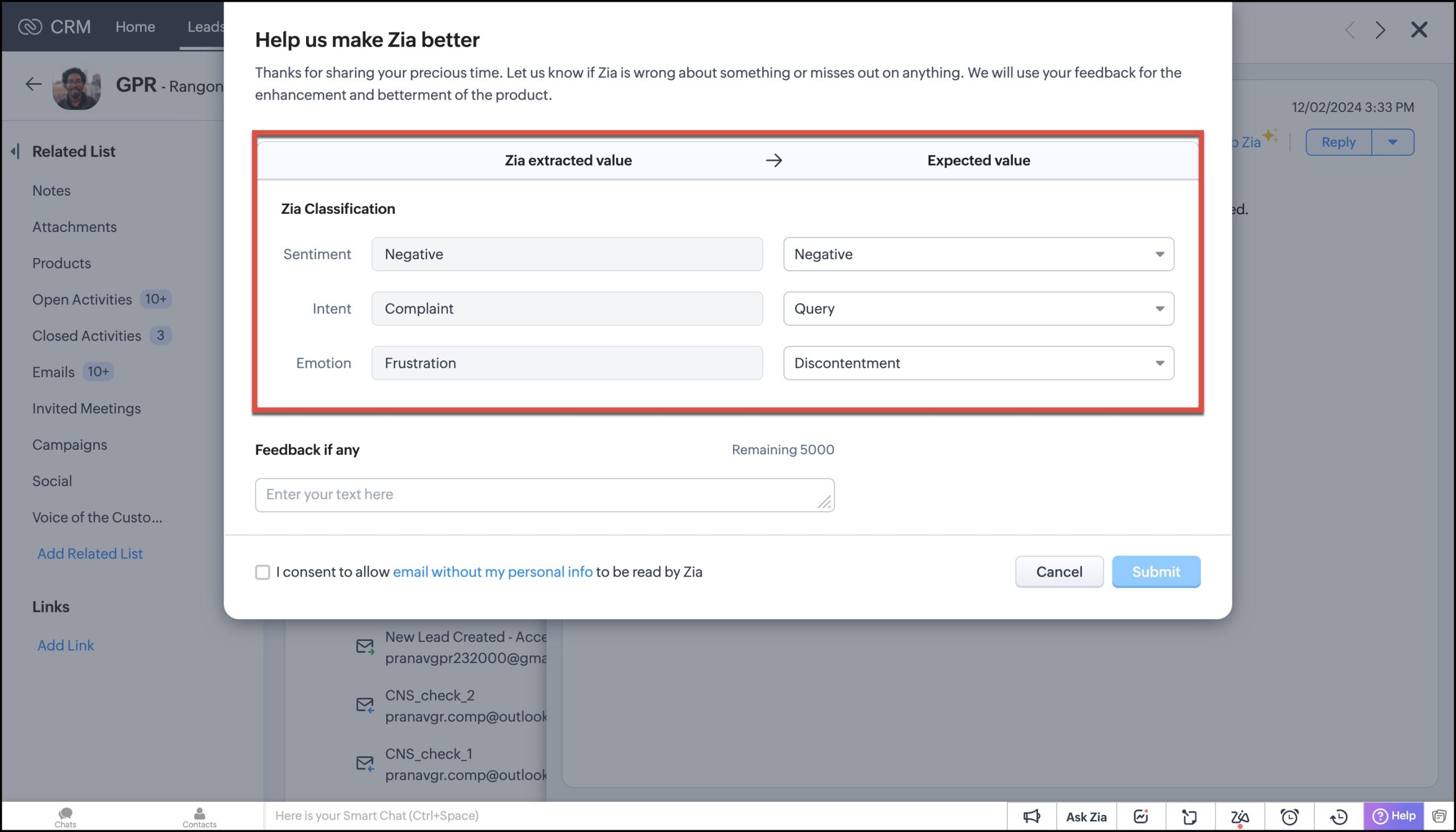
- You may also provide written feedback in the Feedback if any section.
- By selecting the user consent checkbox, you agree not to disclose personal information to Zia.
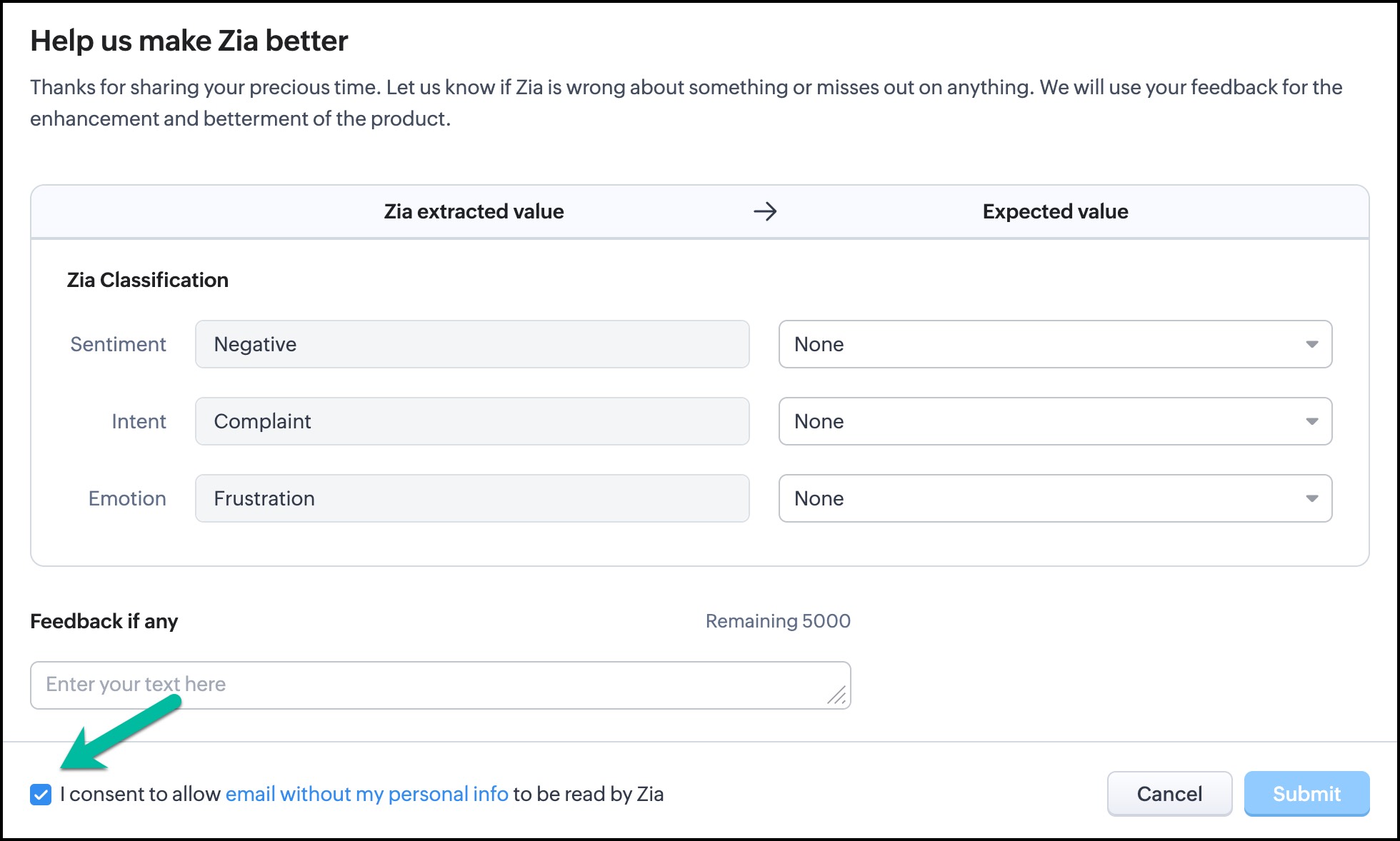
- To see how Zia views your personal information, click the email without my personal info link. The “How Zia sees your mail” window will open.
- Review the email details and decide how Zia should read your information — either as hidden content or actual data.
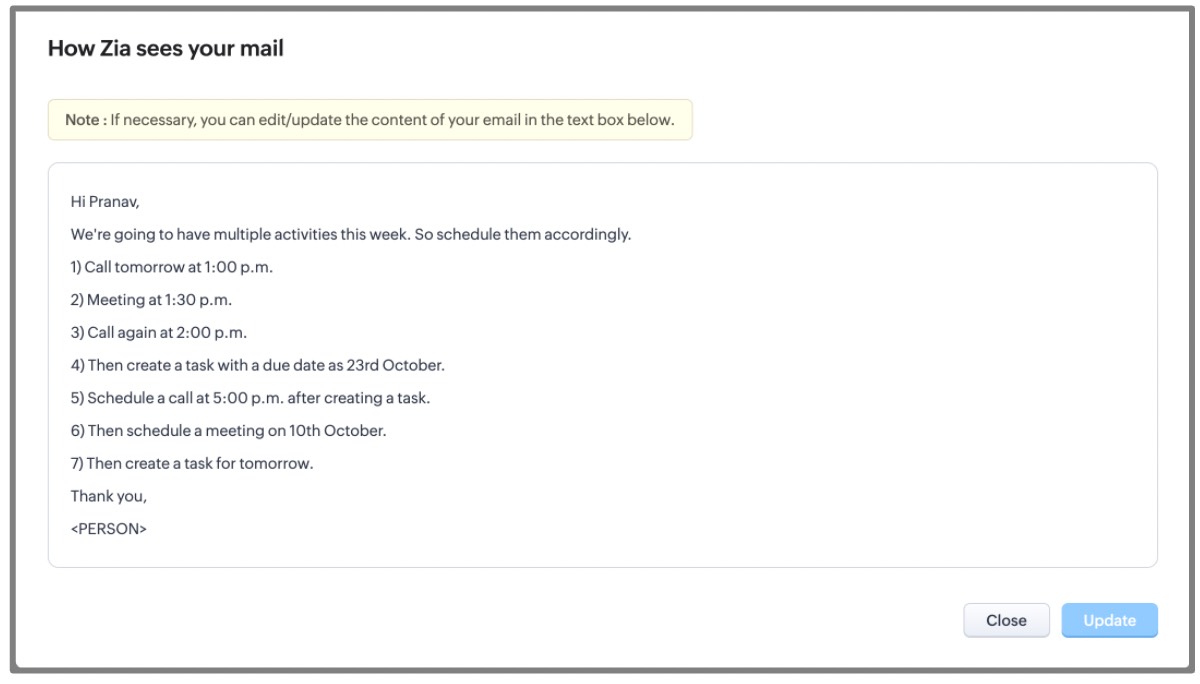
- Click Update.
- Click Submit to send the feedback.
Points to Remember
- All feedback provided by users is manually reviewed and used to train the Zia algorithm.
- Selecting the user consent checkbox is mandatory to enable the Submit button.
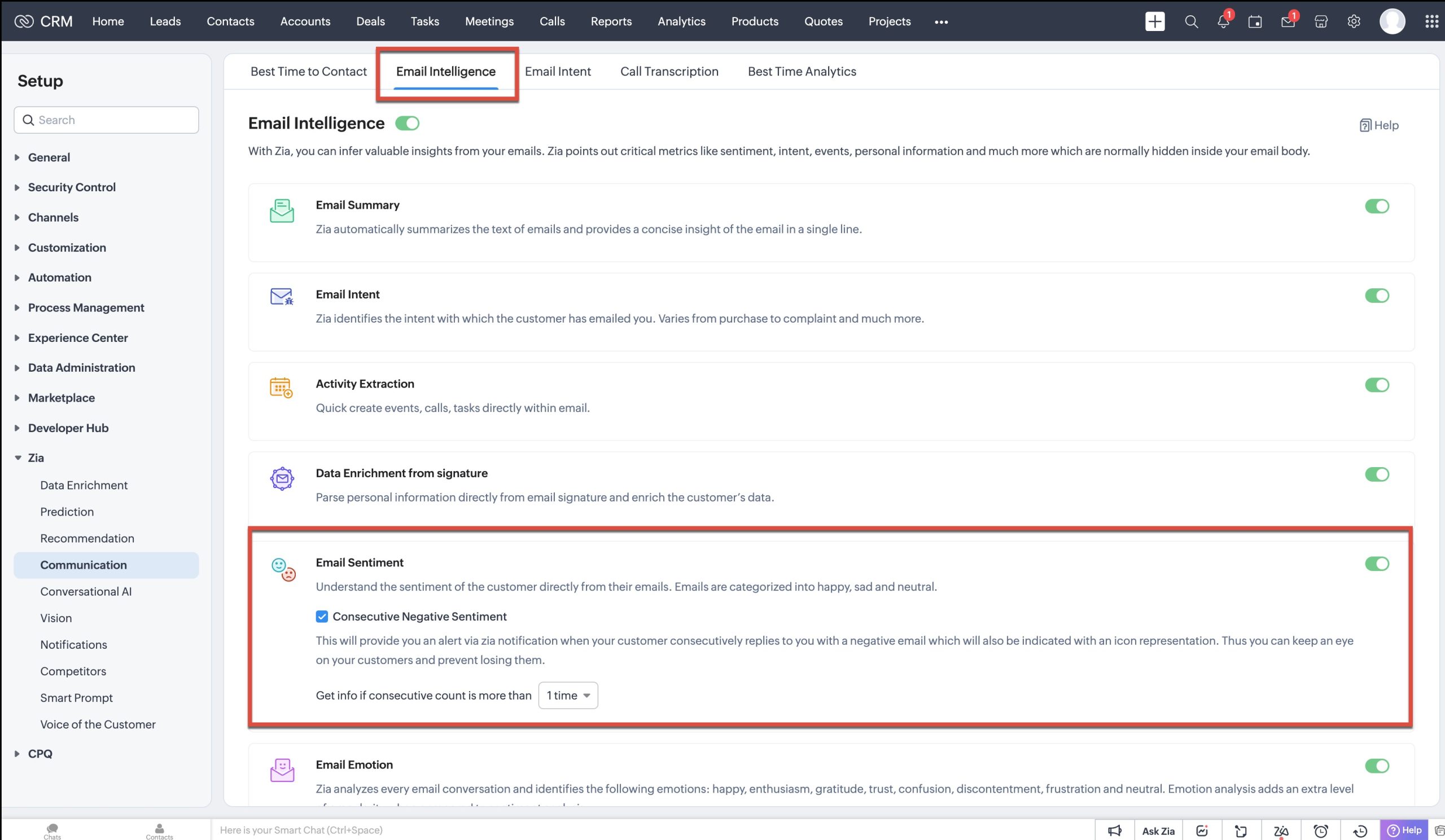
- The ‘Help Zia’ option is available only when the email intelligence feature is enabled.
- Changes after feedback may take time, as Zia requires a certain volume of data to retrain and update.